
Choose your timing
Three ways to structure your edit. Pick a system, drop it in, and cut.
FAQs
-
Yes. All timing kits use the same standard BPM range.
Uses a standard BPM system (60 / 120 / 240), allowing timing guides to be combined and aligned across all kits.
For example, you can move from Straight to Odd or Fibonacci at the same BPM and maintain alignment across your edit.
-
You receive a set of frame-accurate timing guides as video files, along with multiple BPM and frame-rate versions, a quick-start guide, and an example edit.
-
Place the guide on a track in your timeline and follow the visual pulses to position cuts, transitions, or motion.
-
The guides work in any video editor that supports video layers, including DaVinci Resolve, Premiere Pro, Final Cut Pro, and CapCut.
-
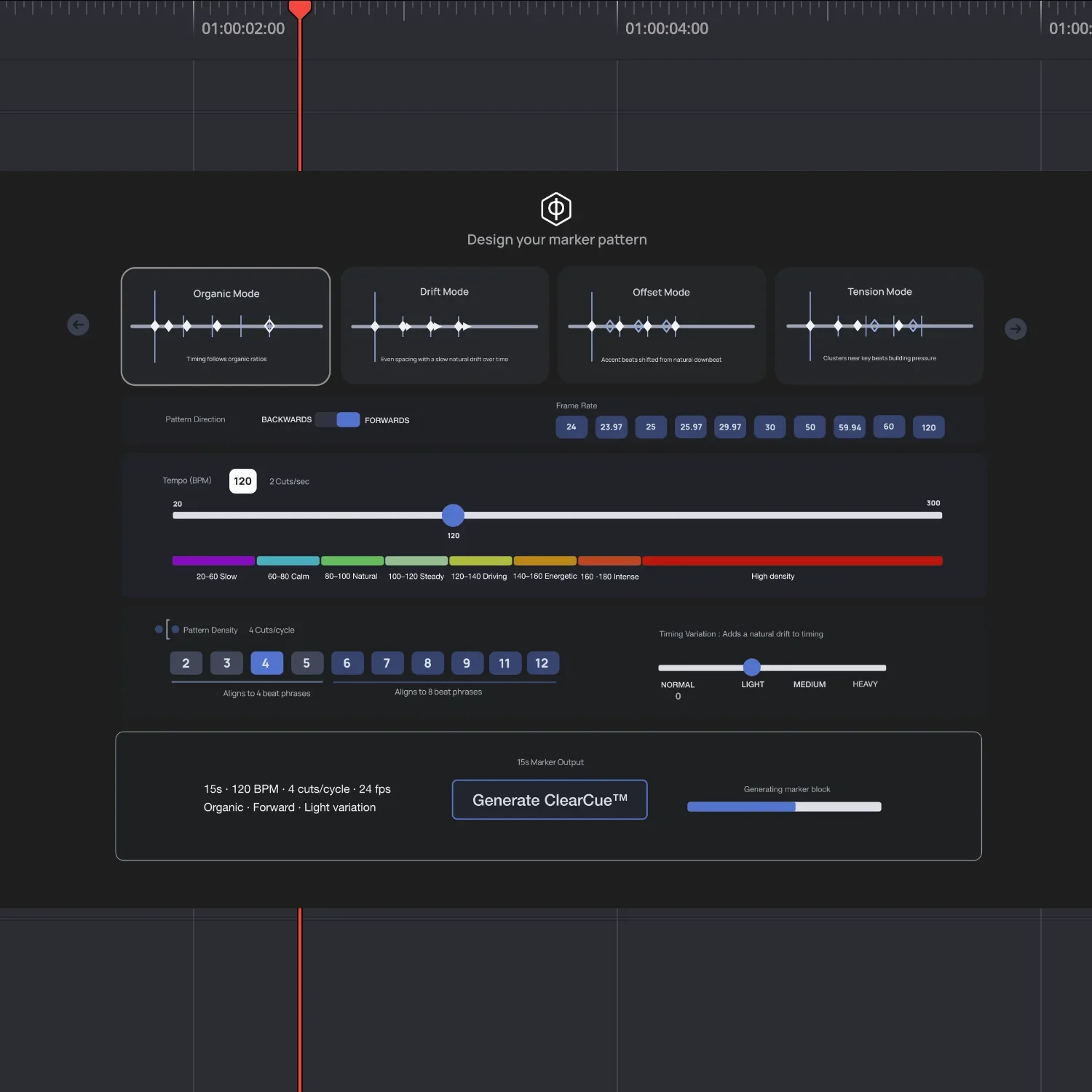
No. The kits are ready-to-use timing structures. The engine is only needed if you want to generate your own custom timing systems.
-
Kits are pre-generated timing structures.
The engine allows you to create your own using tempo, meter, and pattern.
-
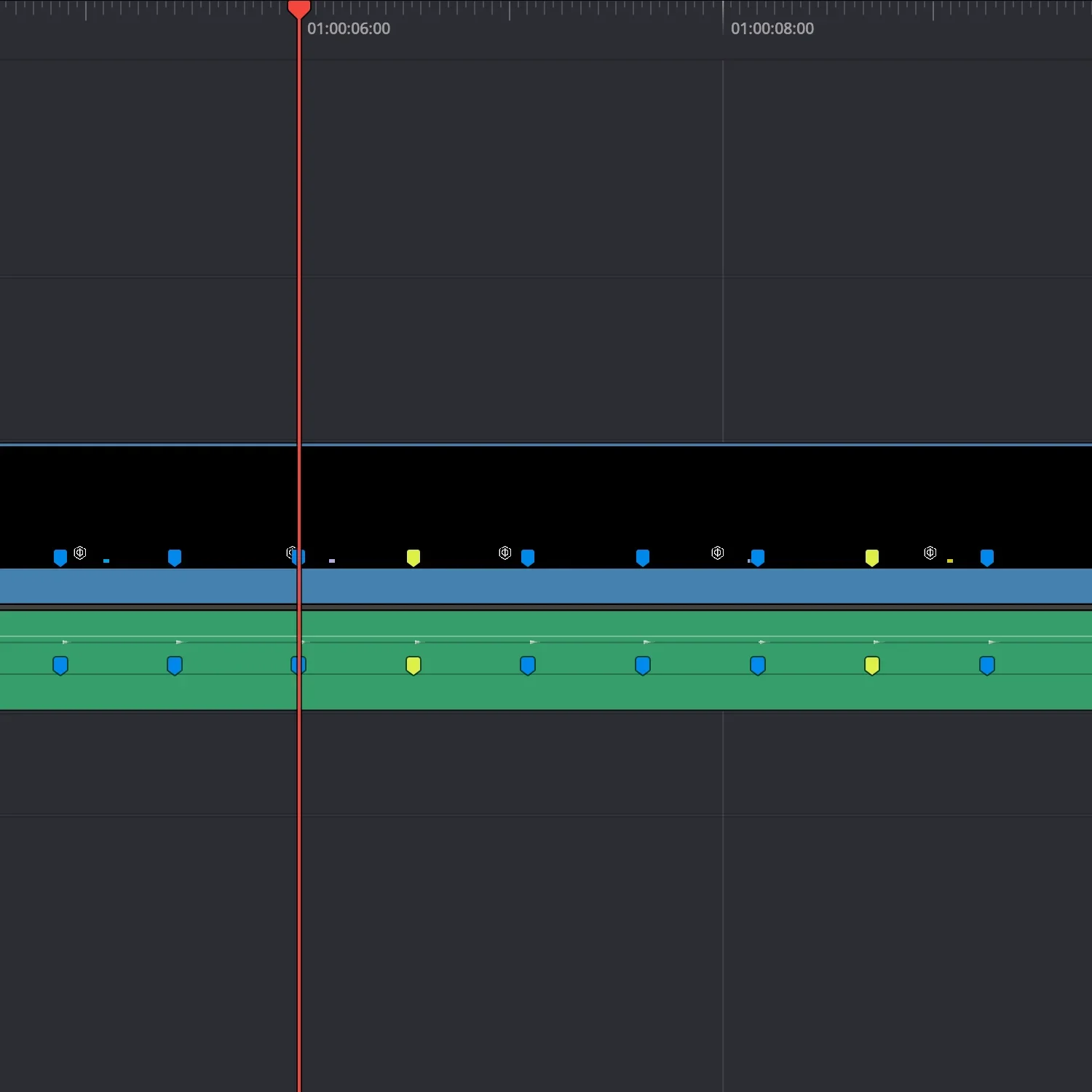
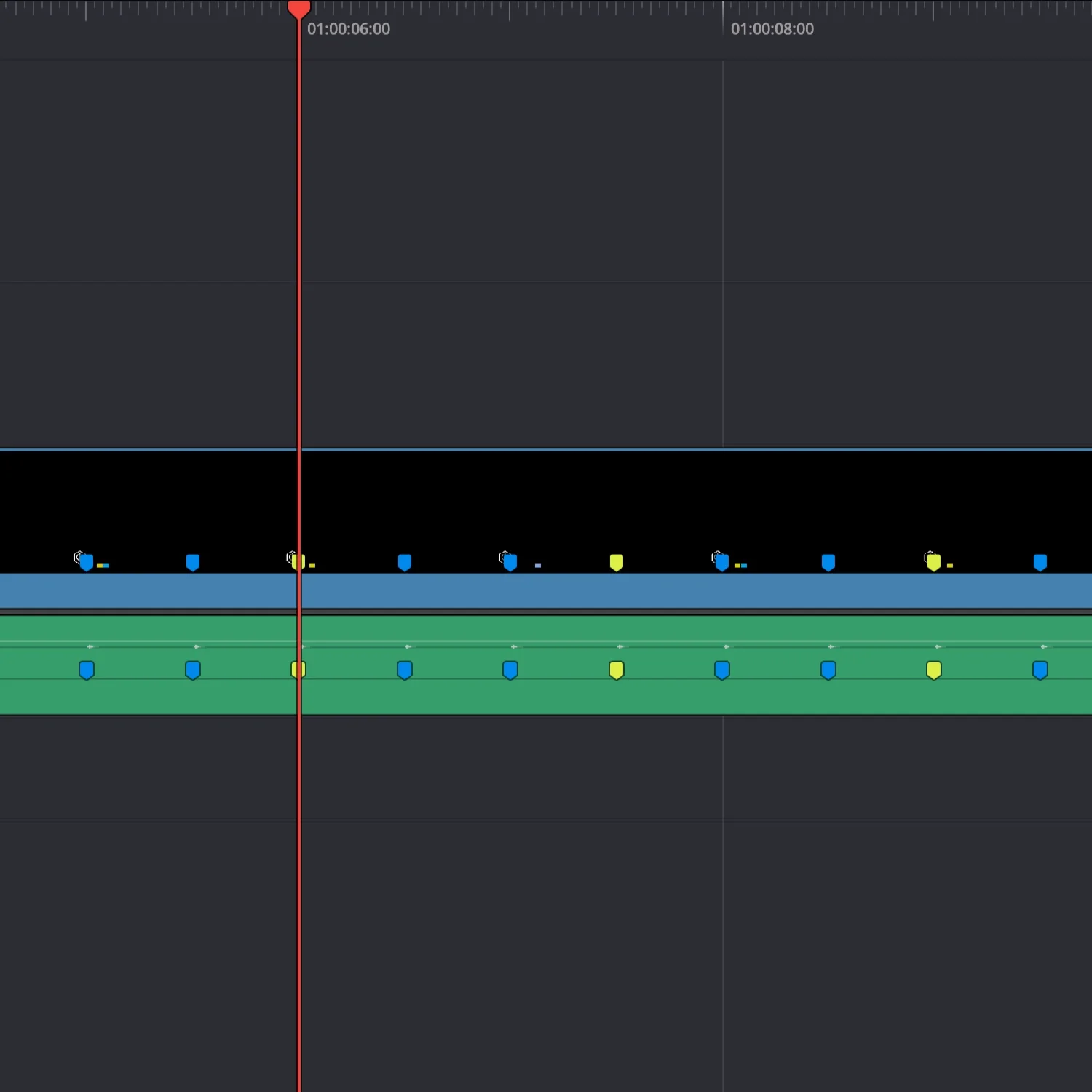
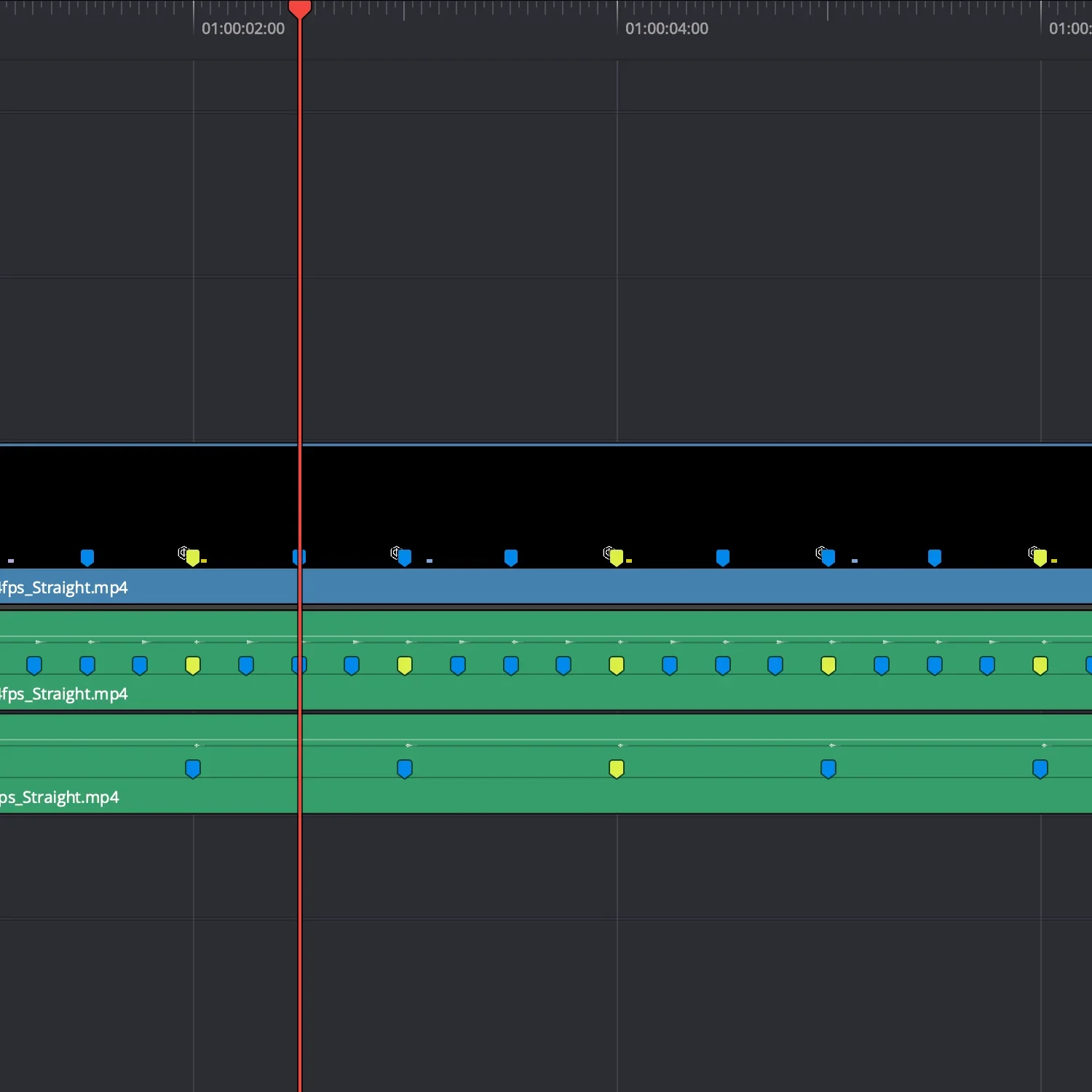
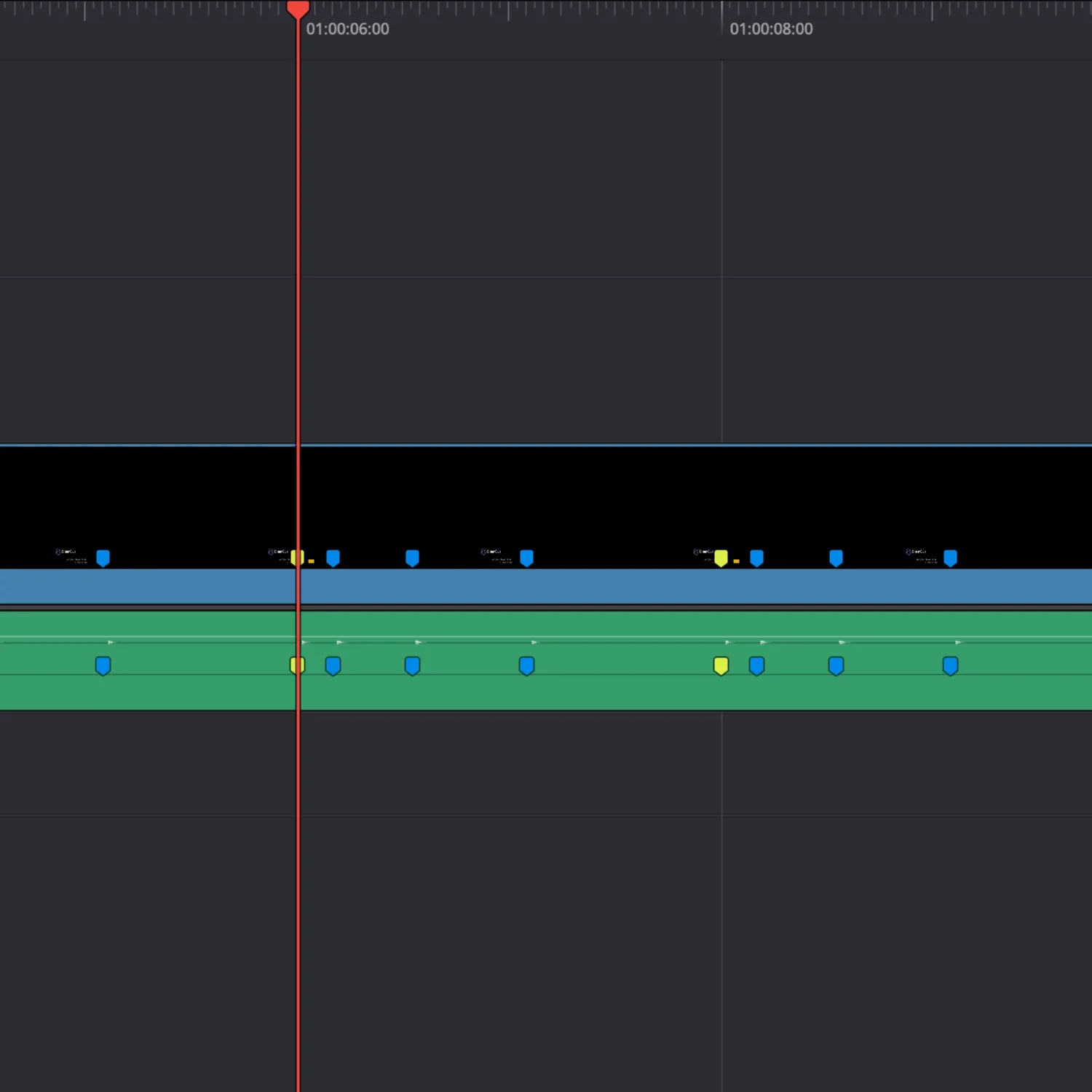
Markers are embedded directly in the timing guides, so you can edit using markers and visual pulses together.
-
Markers can be added by aligning to the guide’s audio transients, or you can edit directly using the visual pulses.
-
Yes. The guides sit above your footage and do not affect your media.
-
No. Each kit is a timing structure. You are using it as a guide, not applying an effect.
-
Yes. Guides can be layered or switched within a timeline to create more complex pacing structures.
-
No. Timing can be designed before adding music, or used to refine pacing after.
-
Each kit is a fixed set of timing structures. New timing systems are released as separate elements.